-
Open the Slack apps dashboard
Head over to api.slack.com/apps and sign in if you aren't already.
-
Create a new app
Click Create New App, then choose From scratch.
Pick "From scratch" — no manifest needed. -
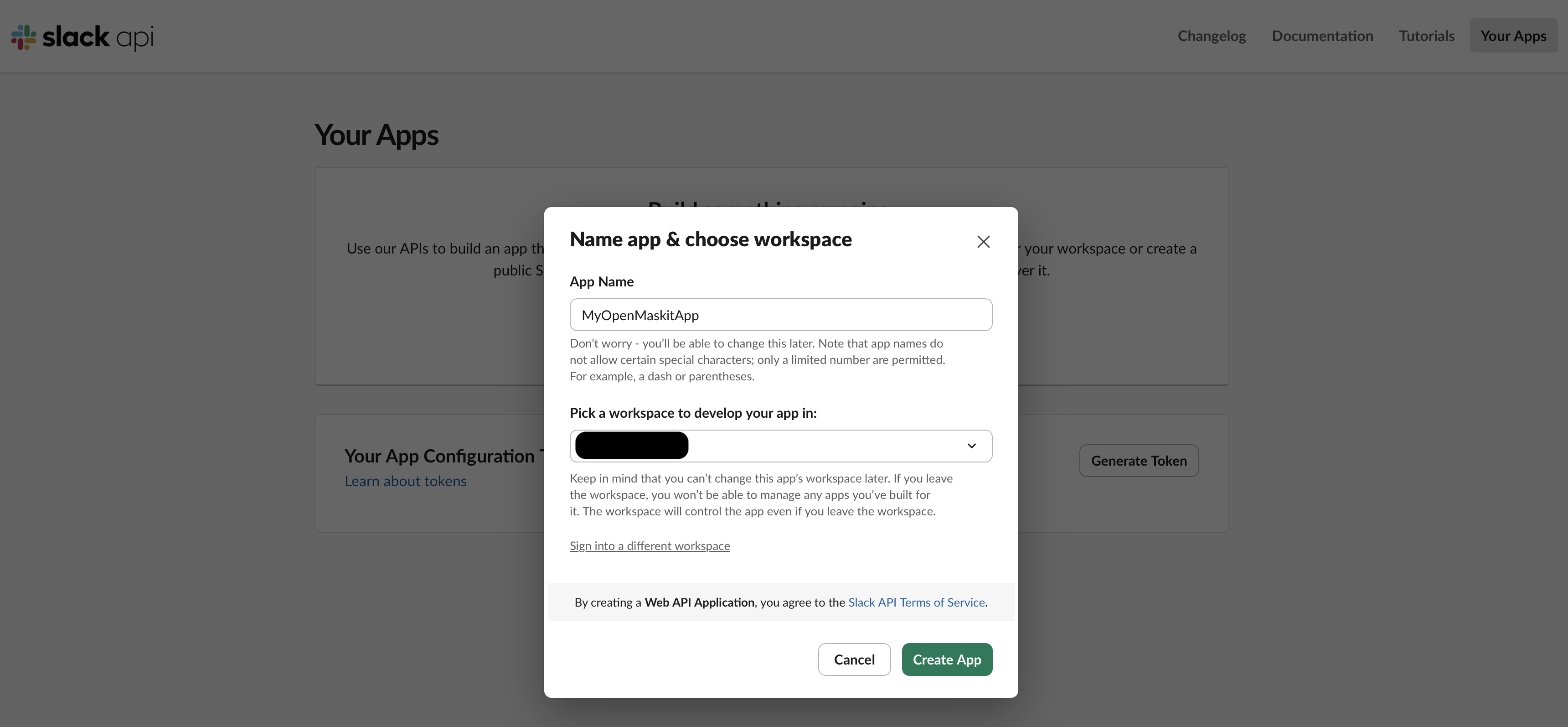
Name it and pick your workspace
Give the app any name you'd like (e.g.
OpenMaskit · {your name}) and select the workspace you want to connect. Then click Create App. -
Add the OpenMaskit redirect URL
In the left sidebar, open OAuth & Permissions. Scroll to the Redirect URLs section, click Add New Redirect URL, and paste:
http://localhost:9473/oauth/callback/slackClick Save URLs at the bottom of the section. Then, in the same Redirect URLs area, tick Opt in for PKCE — OpenMaskit's OAuth flow uses PKCE (RFC 7636), so Slack must be told to expect the
code_challengeparameter.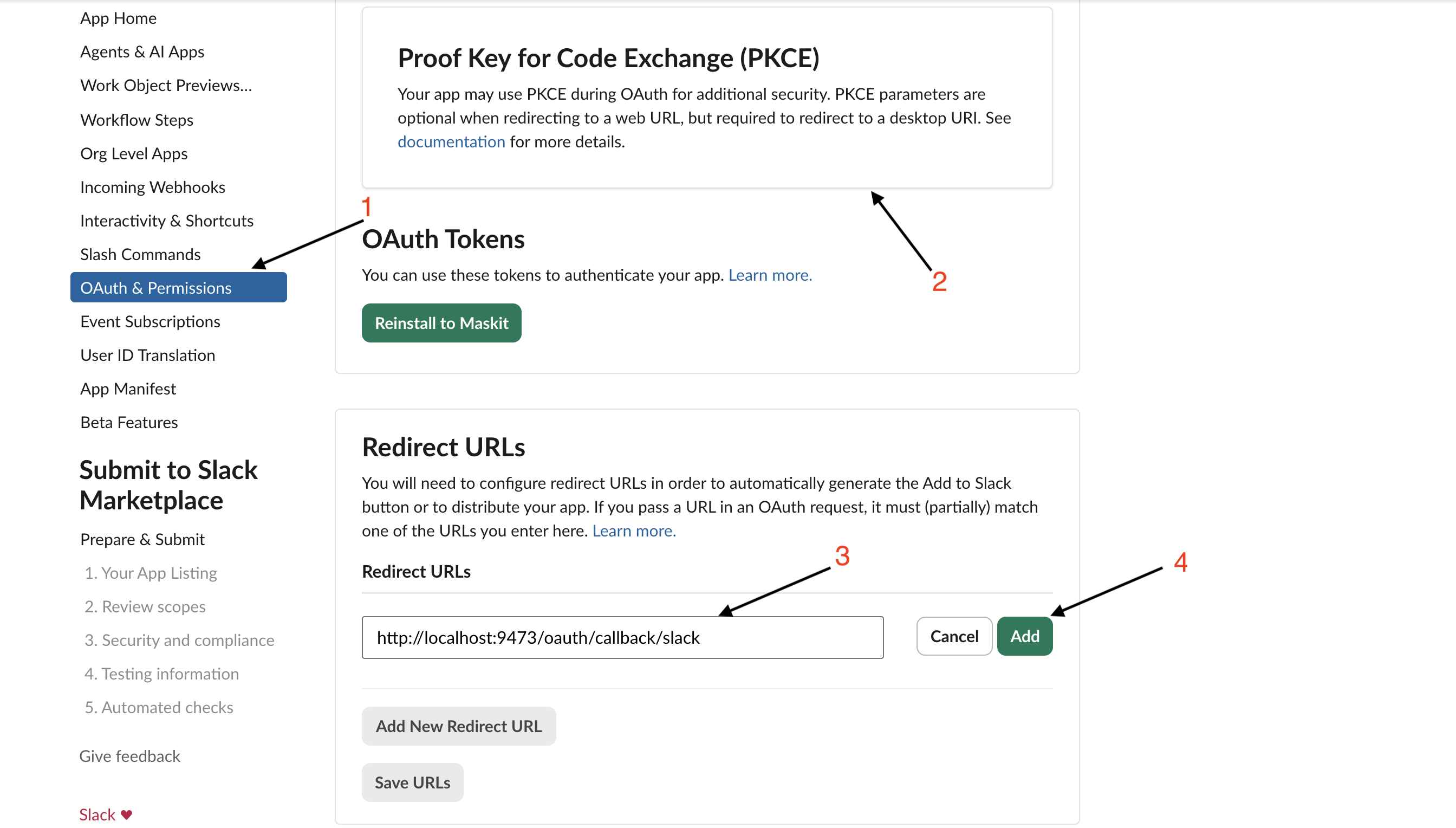
The redirect URL must match exactly — the OpenMaskit dashboard receives the OAuth callback at this path. The install modal also displays this URL for you to copy. -
Enable MCPs in your Slack workspace
Slack ships Model Context Protocol support behind a workspace-level toggle. Without it, the OAuth flow will succeed but every tool call returns an error. In the left sidebar, click Agents & AI Apps, then enable Slack Model Context Protocol (MCP) Server.
-
Copy the Client ID and Client Secret
In the left sidebar, open Basic Information. Under App Credentials you'll find your
Client IDandClient Secret(click "Show" to reveal the secret).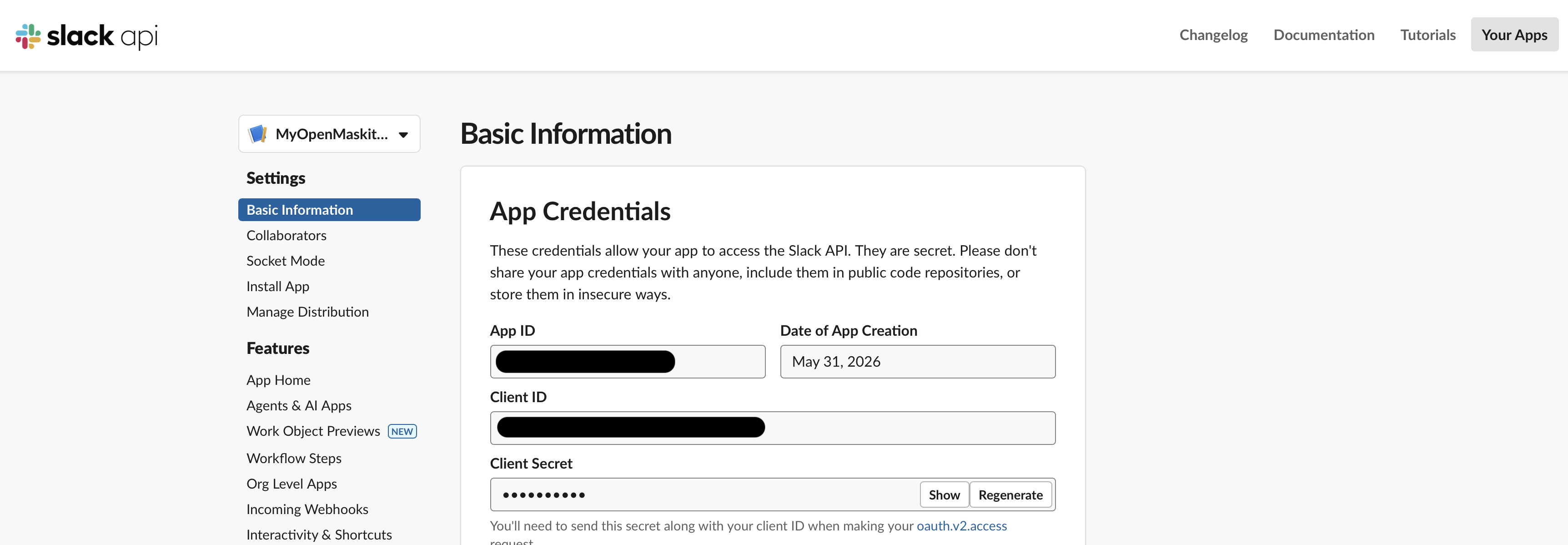
These two values are everything OpenMaskit needs to authorize your workspace. -
Paste them into OpenMaskit
Back in the OpenMaskit dashboard, install Slack from the marketplace, paste the Client ID and Client Secret into the install modal, pick the scopes you want, and authorize. Slack will prompt you to install the app to your workspace — accept, and you're connected.
That's it.
Your Client ID and Client Secret live in your OpenMaskit store directory, encrypted at rest. You can revoke the app at any time from Slack's app dashboard, or hit Re-authorize on the OpenMaskit server card to start a fresh OAuth round-trip.